Telco site access portal user guide v1.1
Benefits of the new system
- Individual profile log-in to track submitted site request tickets and status.
- Clearer site access request types/categories to streamline the process.
- Improved pre-approval time for site access requests (less than 24 hours).
- Only need to upload supporting documents such as SWMS/JSA and insurances once during company registration. No need to upload supporting documents each time a simple site access request (i.e. Site inspection, minor works, and critical maintenance).
- Optimised for both web and mobile experience.
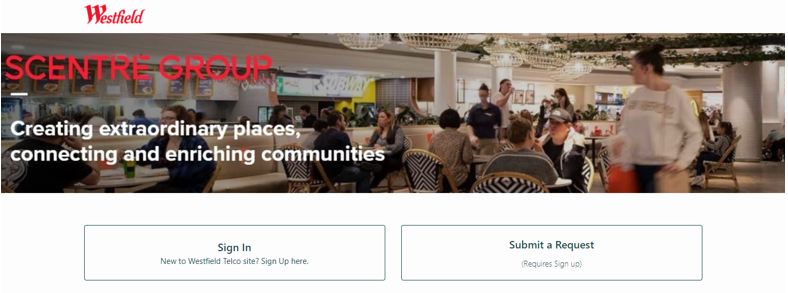
Step 1 – Visit the new Telco site access URL.
https://telco.advisen.com.au
|
|
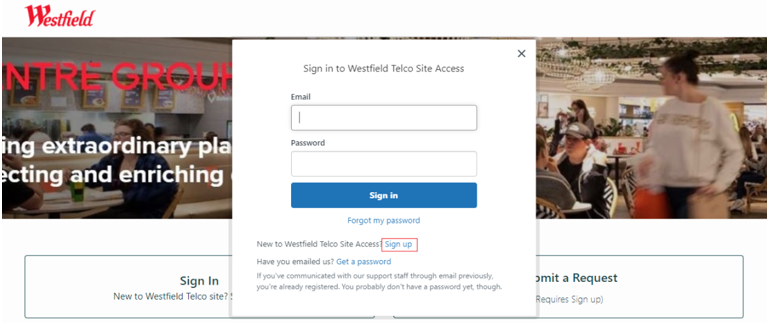
Step 2 – Select ‘Sign up’ and follow the prompts to complete the process.
|
|
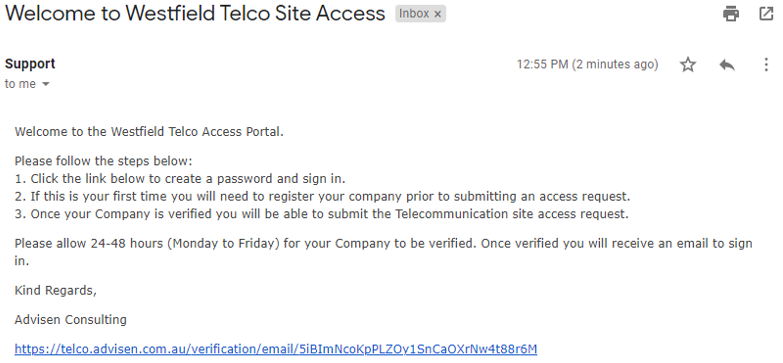
Step 3 – You should have received a Welcome email with the next steps.
- Sometimes this email may appear in your junk folder. Please check your junk folder and move it into your inbox.
|
|
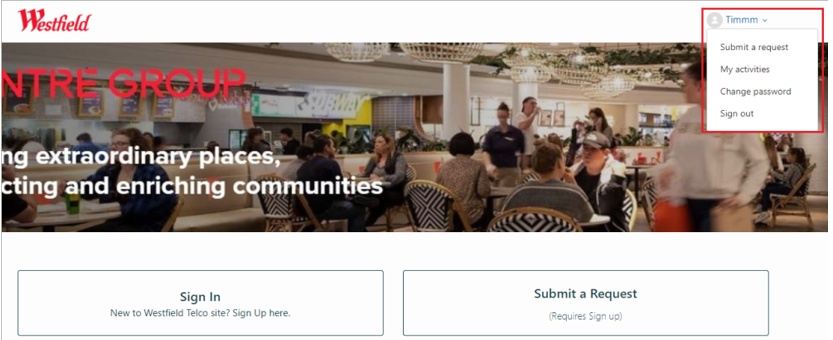
Step 4 – Once you have created your password click on ‘Sign in’. When you have signed in you will see a profile box at the top right corner. Press ‘Submit a request’.
|
|
Step 5 – If your company is submitting a form here for the first time, they will need to submit the ‘Register Company’ form along with supporting documents for verification. This will be a one-off process.
- For some first-time users they may not be able to scroll down to complete the ‘Register Company’ form if this problem occurs simply reload the page and the issue will be resolved.
- If you cannot see the ‘Register Company’ from the drop-down this means your company has been registered already. Go straight to submitting a site access request.
|
|
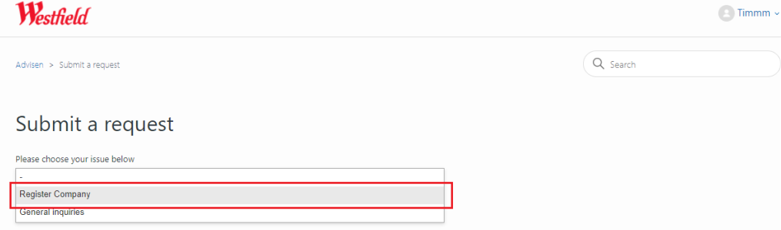
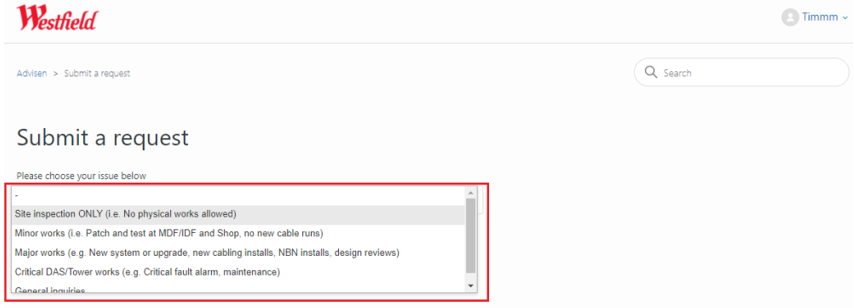
Step 6 - Once verified, you will receive an email advising of the company registration. Click on the link in the email which will redirect you to the Telco portal site, now you will be able to access the different site request types from the drop-down menu. Initial verification can take up to 24-48 hours.
 |
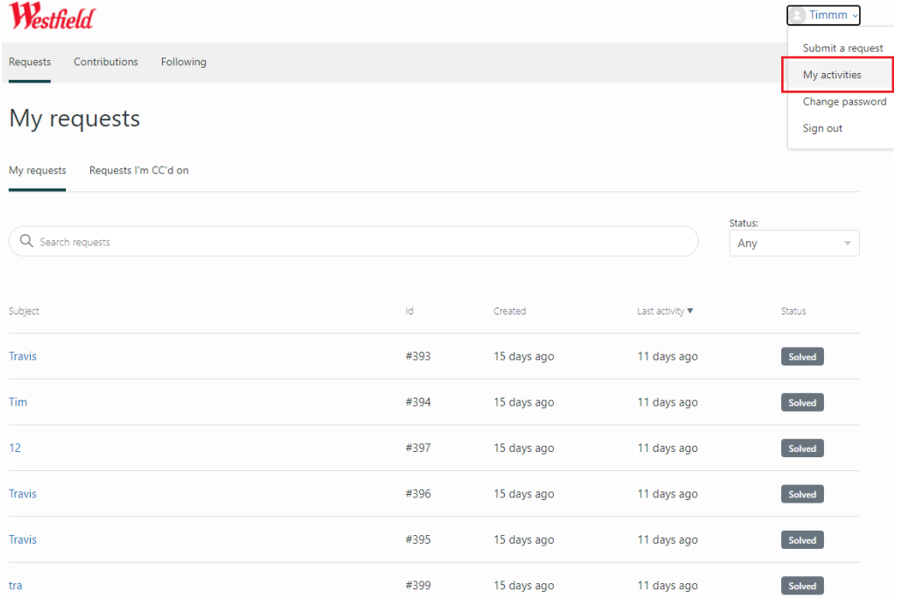
If you want to access your previous ticket submission history and details, this can now be accessed through the profile menu which is located at the top right corner.
 |